Pages

Showing posts with label photoshop tutorial. Show all posts

Wednesday, 28 January 2015

Your own money Photoshop Tutorial

Ever feel like making your own money? Well you probably shouldn't actually make any, because I don't think the law would appreciate it very much. But if you feel like just making some Photoshopped money for a design, then read on to find out how to stick your own face on a dollar bill!
So I have chosen a US dollar banknote, but you can choose whatever you wish. Just grab a camera and take a photo of some money, or you can download a one-dollar note from Wikipedia. The image size I've used is about 2000 px wide and 900 px high.

Thursday, 15 January 2015

Realistic Photo Composite From a Sketch in Photoshop

Final Image
When mixing photos, it's often helpful to use digital painting techniques to help improve your scene. In this tutorial, we will show you how to combine several photos to create a realistic scene of a locomotive passing through a desert landscape. This tutorial will begin as a sketch, we will then show you how to combine photo manipulation and digital painting techniques to create finished artwork that looks amazingly close to the original sketch. Let's get started!

Sunday, 28 December 2014

Supernatural text effect in Photoshop

Final product image
What You'll Be Creating
In this tutorial we'll be creating a smoky night effect on text to give it an eerie supernatural sort of feel. It's a good exercise in using the Wave distortion filter...

Friday, 5 December 2014

Make Light and Shadow and a Coffee Cup

In this tutorial, we're going to use some simple circles and gradients to make a cup of coffee viewed from above. The end result isn't that useful, but the process is interesting nonetheless.
We begin with a nice pastelly-blue gradient. Note that with the gradient, I've put the lighter part in the top right. This is important because we are giving the impression that light is coming from the top right and this is will decide what direction other gradients need to go.
On top of that draw a circle and fill it with white.

Thursday, 4 December 2014

Advance Glow Effect

In this tutorial, we're going to create some really sharp-looking glow effects using a combination of layer styles, the Pen Tool and Color Blending. The end effect is quite stunning and hopefully you'll pick up some tips you didn't know before.
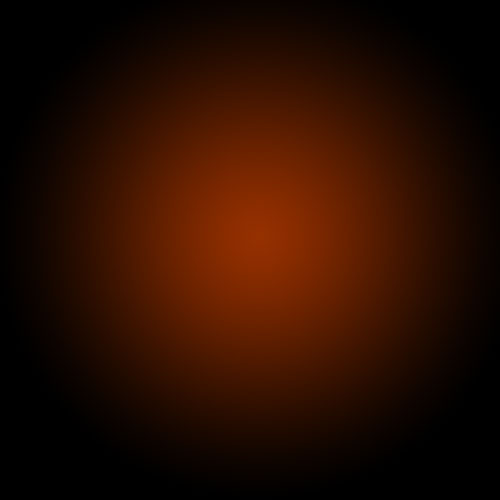
As with pretty much every tutorial I've ever written, we begin with a radial gradient. This one is pretty harsh and goes from a reddish brown color to black. Here are the exact color codes:
Foreground color - #922f00
Background color - #000000


Saturday, 22 November 2014

Create a T-Shirt Design in Photoshop and Illustrator

Final product image
What You'll Be Creating
Recently I was asked to design a T-shirt for the Legnica Fantasy Association, which my sister belongs to. Since it's a non-profit project, I decided to share my creative process with you. I'll show you how to create the idea, how to refine it in Adobe Photoshop, and how to create a two-color, ready-to-print vector out of it.

Monday, 19 September 2011

Animal Photo Manipulation Tutorial


In this tutorial you will learn how to create a new species of birds. The idea came to me after watching my cat trying to catch little birds and failing every time. This will be an easy and quick tutorial. Take the images of a cat and a dove and let’s start, by the end we will help out cat fly so she might even catch some of those birds:

Friday, 9 September 2011

30 Photoshop Tutorials To Create Fantastic Art


Jade Fox
Using photoshop you can do amazing things. You can manipulate photos, create textures or create beautiful art. There are always new things to learn about photoshop and there is never end to it. Creating beautiful art using photoshop is a real fun. You can give artistic touch to scanned or hand drawn pictures. Here i have listed 30 photoshop tutorials to create fantastic art.

Tuesday, 23 August 2011

panic button design logo icon in photoshop


Photoshop-design-panic-button-logo-icon32
Today I am telling you about How to Create Photoshop design panic button logo icon in photoshop.
[1] Take a new file of 500 pixels, 350 pixels, of resolution 72 dpi in the RGB mode.
[2] Using the “Pen Tool” draw a shape as shown below right click

Thursday, 23 June 2011

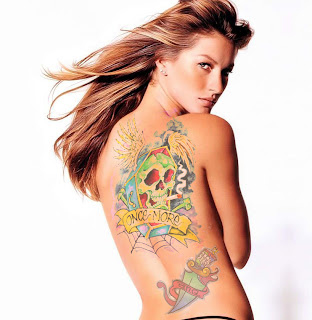
Easy To Add Color Tattoo On Body Make Sexy In Photoshop


Easy to Add realistic tattoo and body Make Sexy art in this Photoshop tutorial using masking And color adjustment, liquify and the re size and transformation tool,This tutorial will show you how you can insert a tattoo design to a photograph with only couple of simple steps in photoshop.

Final Image.

tatoo add sexy Easy To Add Color Tattoo On Body Make Sexy In Photoshop

Sunday, 19 June 2011

Create Real Fire Effects in photoshop

Here we are going to make fire Effects which we will create using by the Photoshop. you can see the Final Image Below.
Step 1: Open a car image for this effects which you want to create so get an image from internet or from your computer.

Thursday, 16 June 2011

Create a Surreal Out of Bounds Photo Manipulation in Photoshop


In this tutorial we will combine several images of water, animals, and people to create a surreal out of bounds photo manipulation in Photoshop. Let’s get started!

Monday, 6 June 2011

Design Surreal Composition Fallen Angel’s Dream Fly


Final Image

We were working on a rather big canvas, we started with 1024px × 764px new layer as these were the dimensions of our base image. However you may feel more comfortable working with smaller or bigger images.

Saturday, 4 June 2011

Metal Text Effect In Adobe Photoshop


Written By A-Z World
In this Photoshop text effects tutorial, we'll learn how to easily create metal text, a popular effect widely used in video games and movie posters! It may seem like there's a lot of steps involved, but once you've done it a few times, creating the effect won't take you more than a few minutes from start to finish. To create the metal texture itself and apply it to the text, we'll be using a couple of layer styles, some filters, layer blend modes, and a clipping mask! I'll be using Photoshop CS5 for this tutorial but any recent version of Photoshop will work.
Here's the final result we'll be creating:
Photoshop metal text effect. Image © 2010 Photoshop Essentials.com.

Text